How to Use AirPrompter to Save Prompts and Run Repeatable AI Workflows Across Your AI Tools
AirPrompter ·
If you use AI tools often, you probably have a prompt you keep rebuilding.
It might be the research prompt you rewrite before every article. It might be the outline structure you paste into a new chat. It might be the Midjourney prompt you keep adjusting until the image finally works. It might be the refinement instruction you remember only after an answer from ChatGPT, Claude, or Gemini comes back too vague.
The problem is not always that you need a better prompt. Sometimes the problem is that your best process is trapped in the wrong place.
One prompt is in an old chat. Another is buried in a document. Another lives in a notes app. Another worked well in one AI service, but you have to rebuild it when you switch to another.
That is where AirPrompter becomes useful.
AirPrompter is available for Chrome and Firefox. It gives you a browser-based way to save prompts from the AI tools you already use, organize the prompts you trust, and turn repeated work into reusable workflows. [1][2]
The useful shift is not just saving more prompts. It is making your best prompts portable.
Instead of copying prompts into external documents, hunting through old chats, or rebuilding the same instruction in every AI service, AirPrompter helps you keep reusable prompts and workflow steps close to the work itself.
This guide walks through a simple way to begin: install the extension, start with one recurring task, save a prompt from the tool where it already works, and build that prompt into a reusable workflow.
AirPrompter works as a portable prompt layer
A prompt library is only useful if it shows up where you work.
That is the advantage of using AirPrompter as a browser extension. If your work moves between browser-based AI tools like ChatGPT, Claude, Gemini, Midjourney, and others, your reusable prompts do not have to stay locked inside one chat history.
That matters because AI work rarely happens in one place anymore.
You might use ChatGPT to draft an article, Claude to pressure-test the argument, Gemini to compare source material, and Midjourney to explore visual concepts. Without a shared prompt layer, every switch creates friction. You either rewrite the prompt, paste from a document, or search through old conversations trying to find the version that worked.
AirPrompter is designed to remove that drag. You can save prompts into your library, organize the ones worth keeping, and bring them back from the browser side panel when you need them. [1][2]
That is the difference between using prompts and building a prompt system.
Step 1: Install AirPrompter from the official browser store
Start by installing AirPrompter from the official listing for your browser:
Chrome Web Store:
https://chromewebstore.google.com/detail/airprompter/jfmfibgihfeobijfnfcgpcifkabhajld
Firefox Add-ons:
https://addons.mozilla.org/en-US/firefox/addon/airprompter/
AirPrompter is currently listed as version 0.1.0. The Chrome Web Store listing shows an update date of April 27, 2026, and Firefox Add-ons lists version 0.1.0 as released on April 27, 2026. [1][3]
Before approving the installation, review the browser’s permission prompts. On Firefox, AirPrompter requests clipboard permissions and access to data for all websites. Browser extensions often need permissions to interact with pages or support clipboard actions. Mozilla and Chrome both provide permission prompts as part of the extension installation model. [2][6][7]
After installation, open AirPrompter from your browser’s extension area or side panel.
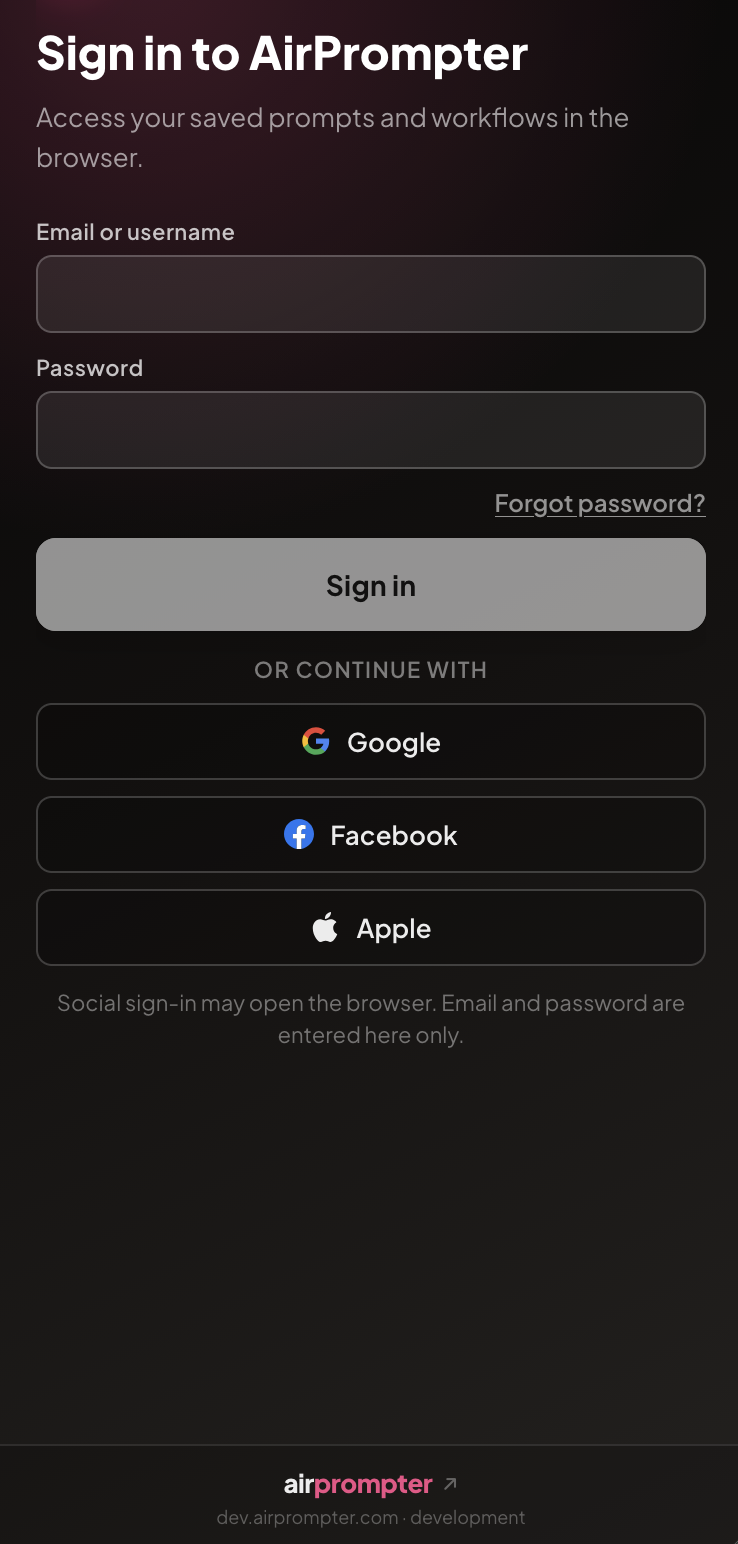
When AirPrompter asks you to sign in, follow the prompt. The Firefox Add-ons listing includes “Authentication information” in its required data collection disclosure, so the first-use experience may include an account or authentication step. [2]
Step 2: Start with one repeated task
Do not start by organizing every prompt you have ever written.
That is how prompt libraries become junk drawers.
Start with one task you know will return. Good candidates include writing or revising a blog post, creating a campaign brief, summarizing research, drafting outreach messages, preparing a meeting recap, developing image prompts, or turning notes into a structured plan.
The best first workflow is not the most complicated one. It is the one you already do often enough to recognize the sequence.
For this walkthrough, use a simple content workflow:
research → outline → draft → refine
That sequence is simple, but it shows why workflows can be more useful than isolated prompts. Each step has a different job. Research gathers direction. The outline creates structure. The draft turns the plan into prose. Refinement improves the result.
When those steps are saved, you are not trying to remember the whole process each time.
Step 3: Save a prompt from the tool where it already works
Once you have chosen a recurring task, look for one prompt inside that task that has already proven useful.
Maybe it is a ChatGPT prompt you use to turn notes into a clean outline. Maybe it is a Claude prompt that helps you review a draft for weak claims. Maybe it is a Gemini prompt you use to compare source material. Maybe it is a Midjourney prompt that finally captured the visual style you wanted.
When a prompt works, save it directly into AirPrompter from the tool you are using.
That is the habit shift.
No more copying the prompt into a separate document. No more maintaining a scattered prompt graveyard across notes, spreadsheets, and old chats. No more trying to remember which AI service had the best version.
The prompt goes into your library when it proves useful, while the context is still fresh.
That makes the library cleaner. It also makes it more honest. You are not saving prompts because they look impressive. You are saving prompts because they worked in a real task.
Step 4: Make the prompt reusable
A prompt is worth saving when it captures a repeatable way of working.
A weak prompt looks like this:
“Write a blog post about this topic.”
A more reusable prompt looks like this:
“Act as an editorial strategist. Review the topic, identify the target reader, list the core problem, suggest a thesis, and produce a structured outline with section headings, key claims, and evidence needed.”
The second prompt is more useful because it includes a role, task, output format, and quality expectation. It does not just ask for an answer. It preserves part of the process.
That is the difference between saving a prompt and saving work you can repeat.
The same principle applies across tools. A reusable prompt should give the AI enough direction to understand the job, the context, and the standard. It may still need adjustment from one model or service to another, but the starting point is no longer blank.
Step 5: Turn saved prompts into workflow steps
Once you have one useful prompt, build outward.
For a content workflow, you might save prompts for four steps:
- Research the topic.
- Build the outline.
- Draft the article.
- Refine the draft.
The reason to separate the steps is not complexity for its own sake. It is control.
A single large prompt can be useful, but it can also hide weak assumptions. A workflow gives you checkpoints. You can review the research before outlining, review the outline before drafting, and improve the draft before publishing.
This is where AirPrompter becomes more than a place to store prompts. The useful habit is not “save more prompts.” The useful habit is “save the steps I want to repeat.”
When you return to the same kind of task, open AirPrompter from the browser side panel and select the prompt or workflow you want to use. The goal is to keep reusable prompts and workflows close to the AI work you are already doing, instead of hunting through notes or old chats.
Step 6: Use the same prompt system across different AI services
The more AI tools you use, the more valuable a portable prompt library becomes.
Different tools may be better for different jobs. You might prefer one service for long-form drafting, another for research comparison, another for image generation, and another for fast brainstorming. But your best instructions should not have to be rebuilt every time you change tools.
AirPrompter gives you a way to keep the reusable part of your process in the browser, rather than locking it inside one chat history.
That does not mean every prompt will work identically in every AI service. Different models and products respond differently. A prompt that works well in ChatGPT may need adjustment in Claude, Gemini, Midjourney, or another tool.
But the starting point is no longer blank.
You have the role, task, constraints, examples, and output format ready. You can adapt the prompt to the tool instead of rebuilding the whole instruction from scratch.
That turns tool-switching from a reset into an adjustment.
Step 7: Make saved prompts stronger over time
Saving a weak prompt does not make it strong. It only makes the weak prompt easier to find.
The better habit is to save prompts with enough structure that they work again later. Microsoft’s Copilot guidance says prompts can include a goal, context, expectations, and source. Nielsen Norman Group’s CARE framework recommends context, ask, rules, and examples. Google Cloud’s prompt engineering guidance also emphasizes context, instructions, and examples as ways to guide model responses. [4][5][8]
For AirPrompter, that means a reusable prompt should usually capture five things:
Goal: What should the AI do?
Context: What background, audience, source material, or situation should it consider?
Rules or constraints: What should it avoid? What style, length, structure, or standard should it follow?
Examples: What does good output look like?
Expected output: Should the answer be a table, outline, email, article draft, checklist, JSON object, image prompt, structured brief, or something else?
A vague prompt such as “Improve this article” does not preserve much. A stronger version names the editorial job, the review criteria, and the expected output: review clarity, argument strength, unsupported claims, generic phrasing, and section flow; then return a prioritized revision plan or revised draft that preserves the original thesis and evidence.
That kind of prompt is easier to reuse because it tells the AI what job to perform and what standard to apply.
Use AirPrompter where repetition exists
AirPrompter should not be treated as a magic layer that guarantees better AI output. It can help improve prompt quality, consistency, and workflow reuse, but that does not mean every user will automatically get better results from every prompt.
The more useful standard is simpler: AirPrompter helps you preserve the prompts and workflows that already work for you.
That also means it should not become a dumping ground. If you save every prompt you see, your library will get noisy. Save the prompts that earn reuse. Organize the ones that belong together. Turn repeated tasks into workflows.
The extension matters most when it helps keep repeatable AI work ready in the browser, not when it becomes a larger folder of prompts.
Start before the next blank chat
The easiest way to try AirPrompter is not to redesign your entire AI process.
Install the browser extension. Open the side panel. Pick one recurring task. Save one prompt from the tool where it already works. Build one workflow around work that will come back.
Then, the next time that task appears, you are not starting from a blank chat, an old document, or a half-remembered instruction from another AI service.
The goal is not a bigger prompt library.
It is a saved process that follows your work, even when your work moves from one AI tool to another.
Source List
[1] Chrome Web Store: AirPrompter
https://chromewebstore.google.com/detail/airprompter/jfmfibgihfeobijfnfcgpcifkabhajld
[2] Firefox Add-ons: AirPrompter
https://addons.mozilla.org/en-US/firefox/addon/airprompter/
[3] Firefox Add-ons: AirPrompter version history
https://addons.mozilla.org/en-US/firefox/addon/airprompter/versions/
[4] Microsoft Support: Get started writing prompts in Microsoft 365 Copilot
https://support.microsoft.com/en-us/microsoft-365-copilot/get-started-writing-prompts-in-microsoft-365-copilot
[5] Nielsen Norman Group: CARE: Structure for Crafting AI Prompts
https://www.nngroup.com/articles/careful-prompts/
[6] Chrome for Developers: Declare permissions
https://developer.chrome.com/docs/extensions/develop/concepts/declare-permissions
[7] Mozilla Support: Extension data collection
https://support.mozilla.org/en-US/kb/extension-data-collection
[8] Google Cloud: Prompt Engineering for AI Guide
https://cloud.google.com/discover/what-is-prompt-engineering